December 17, 2003
HOWTO: Profile memory in linux
1. Introduction
It's important to determine how your system utilizes it's
resources. If your systems performance is unacceptable, it is
necessary to determine which resource is slowing the system
down. This document attempts to identify the following:
a. What is the system memory usage per unit time?
b. How much swap is being used per unit time?
c. What does each process' memory use look like over time?
d. What processes are using the most memory?
I used a RedHat-7.3 machine (kernel-2.4.18) for my experiments,
but any modern Linux distribution with the commands "ps" and
"free" would work.
2. Definitions
RAM (Random Access Memory) - Location where programs reside when
they are running. Other names for this are system memory or
physical memory. The purpose of this document is to determine if
you have enough of this.
Memory Buffers - A page cache for the virtual memory system. The
kernel keeps track of frequently accessed memory and stores the
pages here.
Memory Cached - Any modern operating system will cache files
frequently accessed. You can see the effects of this with the
following commands:
for i in 1 2 ; do
free -o
time grep -r foo /usr/bin >/dev/null 2>/dev/null
done
Memory Used - Amount of RAM in use by the computer. The kernel
will attempt to use as much of this as possible through buffers
and caching.
Swap - It is possible to extend the memory space of the computer
by using the hard drive as memory. This is called swap. Hard
drives are typically several orders of magnitude slower than RAM
so swap is only used when no RAM is available.
Swap Used - Amount of swap space used by the computer.
PID (Process IDentifier) - Each process (or instance of a running
program) has a unique number. This number is called a PID.
PPID (Parent Process IDentifier) - A process (or running program)
can create new processes. The new process created is called a
child process. The original process is called the parent
process. The child process has a PPID equal to the PID of the
parent process. There are two exceptions to this rule. The first
is a program called "init". This process always has a PID of 1 and
a PPID of 0. The second exception is when a parent process exit
all of the child processes are adopted by the "init" process and
have a PPID of 1.
VSIZE (Virtual memory SIZE) - The amount of memory the process is
currently using. This includes the amount in RAM and the amount in
swap.
RSS (Resident Set Size) - The portion of a process that exists in
physical memory (RAM). The rest of the program exists in swap. If
the computer has not used swap, this number will be equal to
VSIZE.
3. What consumes System Memory?
The kernel - The kernel will consume a couple of MB of memory. The
memory that the kernel consumes can not be swapped out to
disk. This memory is not reported by commands such as "free" or
"ps".
Running programs - Programs that have been executed will consume
memory while they run.
Memory Buffers - The amount of memory used is managed by the
kernel. You can get the amount with "free".
Memory Cached - The amount of memory used is managed by the
kernel. You can get the amount with "free".
4. Determining System Memory Usage
The inputs to this section were obtained with the command:
free -o
The command "free" is a c program that reads the "/proc"
filesystem.
There are three elements that are useful when determining the
system memory usage. They are:
a. Memory Used
b. Memory Used - Memory Buffers - Memory Cached
c. Swap Used
A graph of "Memory Used" per unit time will show the "Memory Used"
asymptotically approach the total amount of memory in the system
under heavy use. This is normal, as RAM unused is RAM wasted.
A graph of "Memory Used - Memory Buffered - Memory Cached" per
unit time will give a good sense of the memory use of your
applications minus the effects of your operating system. As you
start new applications, this value should go up. As you quit
applications, this value should go down. If an application has a
severe memory leak, this line will have a positive slope.
A graph of "Swap Used" per unit time will display the swap
usage. When the system is low on RAM, a program called kswapd will
swap parts of process if they haven't been used for some time. If
the amount of swap continues to climb at a steady rate, you may
have a memory leak or you might need more RAM.
5. Per Process Memory Usage
The inputs to this section were obtained with the command:
ps -eo pid,ppid,rss,vsize,pcpu,pmem,cmd -ww --sort=pid
The command "ps" is a c program that reads the "/proc"
filesystem.
There are two elements that are useful when determining the per
process memory usage. They are:
a. RSS
b. VSIZE
A graph of RSS per unit time will show how much RAM the process is
using over time.
A graph of VSIZE per unit time will show how large the process is
over time.
6. Collecting Data
a. Reboot the system. This will reset your systems memory use
b. Run the following commands every ten seconds and redirect the
results to a file.
free -o
ps -eo pid,ppid,rss,vsize,pcpu,pmem,cmd -ww --sort=pid
c. Do whatever you normally do on your system
d. Stop logging your data
7. Generate a Graph
a. System Memory Use
For the output of "free", place the following on one graph
1. X-axis is "MB Used"
2. Y-axis is unit time
3. Memory Used per unit time
4. Memory Used - Memory Buffered - Memory Cached per unit time
5. Swap Used per unit time
b. Per Process Memory Use
For the output of "ps", place the following on one graph
1. X-axis is "MB Used"
2. Y-axis is unit time
3. For each process with %MEM > 10.0
a. RSS per unit time
b. VSIZE per unit time
8. Understand the Graphs
a. System Memory Use
"Memory Used" will approach "Memory Total"
If "Memory Used - Memory Buffered - Memory Cached" is 75% of
"Memory Used", you either have a memory leak or you need to
purchase more memory.
b. Per Process Memory Use
This graph will tell you what processes are hogging the
memory.
If the VSIZE of any of these programs has a constant, positive
slope, it may have a memory leak.
December 14, 2003
Ensim: Mercury Skin Hack.
One of my customers requested that he doesn't want his users to see the Email Forwarding, Auto Responder etc. links on the Menu Items of the User Administration area. Definitely a special request as I could not find anything in the Ensim administration area about this. So, had to dig into Ensim more to reveal this. I found the place from where I can disable this. I disabled it. Unfortunately, that disables for all the domains in the appliance. I didnt want that.
Digged a little more in the mercury skin and found that by modifying the mercury.py and the dashboad.py it can be done for specific domain also.
I am going to state the steps here to achieve this functionality for mercury skin only. For other skins it should be pretty straight forward to identify where to modify. Although, this is a quick hack to get the job done, an upgrade from Ensim might overwrite the modifications if they have new file for /usr/lib/opcenter/skins/mercury/mercury.py and /usr/lib/python2.2/site-package/ensimappl/dashboad.py. Also, note that this is for Ensim Pro 3.x.
So, here it goes:
Step 1:
1. SSH into the Ensim box and then cd into the /usr/lib/opcenter/skins/mercury directory:
[root@ensim mercury] #
2. Copy the mercury.py to mercury.py.orig. Purpose is to make a backup before you can start pulling your hair.
3. Open the mercury.py file in you favourite editor (mine is 'vi'):
4. Search for UA_menu_items. You should see something like:
SA_menu_items,UA_menu_items,\
AA_shortcuts,AA_shortcuts_basic,RA_shortcuts,\
SA_shortcuts,UA_shortcuts,blank_cell
5. Ok, now search for "user_frame" (without the inverted commas). You should see something like this:
r = self.get_response()
site,user = requestutil.get_site_user_from_request(self.REQUEST)
uaconf = dashboard.get_user_conf(site,user)
dashboard.load_user_request(self.REQUEST, uaconf)
self.load_common_translations(uaconf)
a = r.write('''
<HTML>
<HEAD>
<base href="https://%(http_host)s/webhost/services/virtualhosting/useradmin/" />
<!----- Copyright (c) 2000-2003 Ensim Corporation ----->
<TITLE>%(T_User_Administrator)s %(display_version)s %(login_name)s@%(siteinfo_domain)s</TITLE>
</HEAD>
<frameset rows="79,*,7" cols="*" framespacing="0" frameborder="no" border="0">
<frame src="topbar" name="top" frameborder="no" scrolling="no" noresize marginwidth="0" marginheight="0" id="top">
<frameset cols="199,*" framespacing="0" frameborder="no" border="0">
<frame src="navbar" name="navigation" frameborder="no" scrolling="no" noresize marginwidth="0" marginheight="0" id="navigation">
<!--<frame src="view_shortcuts" name="main" frameborder="no" scrolling="auto" noresize marginwidth="0" marginheight="0" id="main" >-->
<frame src="%(firstpage)s" name="main" frameborder="no" scrolling="auto" noresize marginwidth="0" marginheight="0" id="main">
</frameset>
<frame src="footer" name="footer" frameborder="no" scrolling="no" noresize marginwidth="0" marginheight="0" id="footer">
</frameset>
<noframes>
%(frames_warning)s
</noframes>
</HTML>''' % uaconf)
Note that there is a line in the above HTML code which is commented out:
Also, note that a similar line following this line:
The only difference in these two line are the "%(firstpage)s" variable instead of the "view_shorcuts" in the src="" value. In your mercury.py you will not see these modifications. You will have to make these modifications now. All you have to do is comment out the line that is shown commented here, and add the line with "%(firstpage)s" after it.
Save the file and proceed to Step 2.
To be continued.... Too sleepy to continue now... :)
December 06, 2003
Ensim: /var/spool/mqueue remedy.
In my 1 year experience with Ensim what I found most disturbing is when the sendmail daemon starts fighting for its life trying to keep up sending thousands of email with huge attachment to some users whose email domain cannot be resolved or user cannot be found or because users' quota exceeded.
Somtimes, there are people sending applications sized at 20/30 MB to other people through email, and unfortunately as the users quota is already full, those emails start getting queued in the /var/spool/mqueue directory and gets owned by the 'root' user by default resulting the a waste of harddisk space.
I had one case when I found a staggering 77GB of queued mails in the /var/spool/mqueue directory of a site. I cannot resit showing the finding here:
[root@ensim1 virtual]# find . -name mqueue -exec du -hsc {} \;
.
..
4.0k ./site10/fst/var/spool/mqueue
4.0k total
77G ./site11/fst/var/spool/mqueue
77G total
64k ./site12/fst/var/spool/mqueue
64k total
..
.
^C
[root@ensim1 virtual]# cd site11/fst/var/spool/mqueue
[root@ensim1 mqueue]# ls -lah
.
.
-rw------- 1 root mail 38MB Sep 11 14:19 dfh8B6Jpa13658
-rw------- 1 root root 38MB Sep 11 14:49 dfh8B6nsJ21407
-rw------- 1 root mail 38MB Sep 11 14:57 dfh8B6vFi23054
-rw------- 1 root root 38MB Sep 11 15:51 dfh8B7pAN03118
^C
[root@ensim1 mqueue]# ls -lah |grep 38MB |wc -l
2074
[root@ensim1 mqueue]#
As you can see from above, someone tried sending 2074 emails each 38MB of size. Phewwwwww... What a waste of bandwidth, money and energy.
I took a deeper look into the mail and found that the user sent the same mail to all the users of that particular domain and when he found that the mail did not go, he tried again and then tried again and then tried again... Neither the owner of the domain nor the sending user had any idea that their site is out of quota and all the mails are being stored in the system as 'root', so the system's disk space keep filling up. Its fortunate that there was enough space in the hard drive to sustain this activity.
Now, the question is why in the world the system keep storing the emails while the site's quota was full? Because, Ensim is designed not to bind the incoming email space with the site's quota. I find this as a misconception. You cant call this a bug, its definitely a misconception for virtual domain hosting.
What is the solution to this? I asked myself this question. I threw some queries to the Ensim forum and found the correct way to fix and cure it.
Here is what needs to be done to fix this problem:
Step 1:
[root@ensim1 root]# cd /home/virtual
[root@ensim1 virtual]# for i in `sitelookup -a domain`;do du -hsc $i/var/spool/mqueue;done;
This command will help you find the current culprit sites that are holding up the space. Then you can just delete away the queues. But, becarefull about deleting legitimate queues. You may want to delete only those which are huge in size.
Step 2:
Save the following code in a file called /bin/fixmqueue.sh:
#
# Author: Ziaur Rhaman
# Copyleft 2003-2004.
# Description: This script will setgid the /var/spool/mqueue directory of a domain to make the queues owned
# by their siteadmin. It takes a series fo steps to achive this, including regenerating the sendmail.cf file
# for the domain.
#
DOMAIN=$1
export WP_USER=`/usr/local/bin/sitelookup -d $DOMAIN wp_user`
export WP_USER_UID=`/usr/local/bin/sitelookup -d $DOMAIN wp_user |/usr/bin/xargs id -u`
echo "[x] Owning /home/virtual/$WP_USER/var/spool/mqueue/..."
chown $WP_USER:$WP_USER /home/virtual/$WP_USER/var/spool/mqueue/
sleep 1
echo "[x] Changing mode to 777 on /home/virtual/$WP_USER/var/spool/mqueue/..."
chmod 777 /home/virtual/$WP_USER/var/spool/mqueue/
sleep 1
echo "[x] Setting setgid on /home/virtual/$WP_USER/var/spool/mqueue/..."
chmod g+s /home/virtual/$WP_USER/var/spool/mqueue/
sleep 1
echo "[x] Owning /home/virtual/$WP_USER/etc/smrsh..."
chown -R $WP_USER:$WP_USER /home/virtual/$WP_USER/etc/smrsh
sleep 1
echo "[x] Owning /home/virtual/$WP_USER/etc/alaiases*..."
chown -R $WP_USER:$WP_USER /home/virtual/$WP_USER/etc/aliases
chown -R root:$WP_USER /home/virtual/$WP_USER/etc/aliases.db
sleep 1
echo "[x] Making backup of /home/virtual/$WP_USER/etc/sendmail.cf..."
/bin/cp /home/virtual/$WP_USER/etc/sendmail.cf /home/virtual/$WP_USER/etc/sendmail.cf.zorig
sleep 1
echo "[x] Making backup of /home/virtual/$WP_USER/etc/mail/sendmail.mc..."
/bin/cp /home/virtual/$WP_USER/etc/mail/sendmail.mc /home/virtual/$WP_USER/etc/mail/sendmail.mc.zorig
sleep 1
echo "[x] Changing DefaultUser for sendmail to $WP_USER..."
/usr/bin/perl -i -p -e 's/mail:mail/$ENV{WP_USER_UID}:$ENV{WP_USER_UID}/;' /home/virtual/$WP_USER/etc/mail/sendmail.mc
sleep 1
echo "[x] Changing directory to /home/virtual/$WP_USER/etc/mail/..."
cd /home/virtual/$WP_USER/etc/mail/
sleep 1
echo "[x] Generating /home/virtual/$WP_USER/etc/sendmail.cf..."
/usr/bin/m4 sendmail.mc > /home/virtual/$WP_USER/etc/sendmail.cf
unset WP_USER
unset WP_USER_UID
Now, issue the following commands:
[root@ensim1 root]# cd /home/virtual
[root@ensim1 virtual]# for i in `sitelookup -a domain`;do if [ -s /home/virtual/$i/etc/mail/local-host-names ];then /bin/fixmqueue.sh $i;fi;done;
This command will convert all the /var/spool/mqueue directories of all the sites currently hosted for the system to save the queue files owned as the siteadmin user of the corresponding sites. This will prevent the system from saving the unnecessary queues as 'root' and wasting space.
The idea is to setgid the /var/spool/mqueue directory of the virtual site. By doing so, files saved in the mqueue directory will automatically be owned by the admin of the site thus restricting the mail queue space to the site's quota.
In order to save the queues as the siteadmin of the sites, the sendmail.cf of the site needs to be modified. By default ensim runs the sendmail for any or all sites as the user 'mail'. So, when it saves the queues it saves them as root:mail. To alter this to siteadmin:siteadmin, the "O DefaultUser=mail:mail" setting in sendmail.cf needs to be changed to "O DefaultUser=siteadmin:siteadmin". This is exactly what the above script does. The script above actually creates a backup of the sendmail.cf before it can make the changes. I used Perl to modify the sendmail.mc because I personally find it more convenient than 'sed' to modify files on the fly.
Step 3:
Now, save the following lines in the /etc/appliance/customization/virtDomain.sh file:
export WP_USER=`/usr/local/bin/sitelookup -d $DOMAIN wp_user`
export WP_USER_UID=`/usr/local/bin/sitelookup -d $DOMAIN wp_user |/usr/bin/xargs id -u`
chown $WP_USER:$WP_USER /home/virtual/$WP_USER/var/spool/mqueue/
chmod 777 /home/virtual/$WP_USER/var/spool/mqueue/
chmod g+s /home/virtual/$WP_USER/var/spool/mqueue/
chown -R $WP_USER:$WP_USER /home/virtual/$WP_USER/etc/smrsh
chown -R $WP_USER:$WP_USER /home/virtual/$WP_USER/etc/aliases*
/bin/cp /home/virtual/$WP_USER/etc/sendmail.cf /home/virtual/$WP_USER/etc/sendmail.cf.zorig
/bin/cp /home/virtual/$WP_USER/etc/mail/sendmail.mc /home/virtual/$WP_USER/etc/mail/sendmail.mc.zorig
/usr/bin/perl -i -p -e 's/mail:mail/$ENV{WP_USER_UID}:$ENV{WP_USER_UID}/;' /home/virtual/$WP_USER/etc/mail/sendmail.mc
cd /home/virtual/$WP_USER/etc/mail/
/usr/bin/m4 sendmail.mc > /home/virtual/$WP_USER/etc/sendmail.cf
unset WP_USER
unset WP_USER_UID
then, make the file executable.
This script will automatically setgid the /var/spool/mqueue directory of any newly created site in both Ensim Basic and Pro (3.1.x and 3.5.x).
It can also be downloaded from: http://zort.org/codes/bash/ensim/virtDomain.sh.var-spool-mqueue
DISCLAIMER:
December 04, 2003
Zombie Process
Have you ever wondered what in the world is a "Zombie Process"? If you have, then you will get your answers here. :)
I will start with an interesting find about 'zombie process' in the Internet:
A zombie is already a dead process. No wonder it could not be killed eh? To put it in more elegant words, I found this explanation online:
> When I run top, I have a zombie process (it's a cron job that does my
> nightly backup) running and I need to kill it. I have tried kill -9
> , but it doesn't work. Any ideas? Thanx.
You cannot kill it because it already is dead. That is why it is called a zombie. ;^)
To be technical, a zombie process is one that already has terminated via an
exit() system call or uncaught signal. In order for it to "go away" (be removed from the process table, its parent must do a wait() system call or one of its variants.
The ultrasecret reason for this is that the zombie contains some statistics on the process such as the exit status (why it died) and CPU time used that must be returned to the parent and this is stored in -- guese where -- the zombie's per-process structure. This is why it cannot be removed until the parent does a wait() on it.
Sometimes a parent fails to do the wait(), usually due to a programming bug. Any old C program can do a fork() and not do the wait() and cause this. It used to be a problem with shell scripts doing "foo&" and never waiting back in the dark days of older UNIX systems.
In your case, perhaps cron has gotten confused (bug) and lost track of its children so it is not correctly waiting for them to complete.
As the other poster suggested, restarting cron will start it thusly:
/etc/rc.d/init.d/crond stop
sleep 1
/etc/rc.d/init.d/crond start
should do it. This works because if a process dies (e.g. crond) then init (process 1) inherits its children and init will do the wait correctly.
For the impatients, the above will suffice. But, this merely tells you: why the process went into a 'notorious' ZOMBIE mode anyways!
For those who are 'brave at heart' and share the same ideology as 'the truth is out there...', here is a bit more technical explanation:
If your process table is showing an abnormally high number of defunct processes, and if the problem recurs even after rebooting, it is advisable to determine the cause. Look at the PPID (parent process ID) for the defunct processes and try to find out why its child processes are becoming defunct. Examining the process table (ps -elf), grepping for the parent process in the rc scripts, and making use of utilities such as u386mon or cpqmon should help.
Most likely the process has gone to sleep at a priority below PZERO, therefore signals will never reach the process and it will remain unkillable.
For further explanation of what this means, read the following.
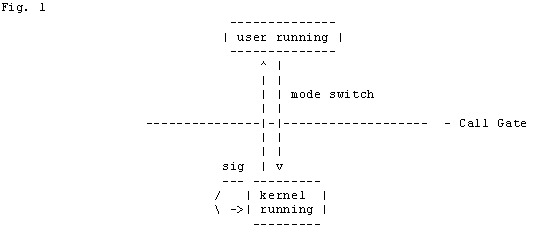
To start with, processes run in two modes: user mode and kernel mode. When a process is in user mode it responds to interrupts and signals. When a process in user mode receives an interrupt, or a signal or makes a system call, it goes through a call gate to enter kernel mode and executes the kernel code (see fig. 1).
Once a process is in kernel mode it ignores all interrupts and signals until it is about to return to user mode. Most kernel functions execute quickly, and upon exiting kernel mode, they handle all interrupts and signals. After running for a maximum of one second, the process is preempted and is returned to the runqueue. Since kernel functions execute quickly this is not typically the cause of unkillable processes. To understand this, it is necessary to go into more detail about what goes on in kernel mode.
The following diagram (fig. 2) will be useful in understanding the details of what goes on in kernel mode. You may wish to print it out. A similar, easier to read, version of this diagram can be found on the cover of Maurice Bach's book _The Design of the UNIX Operating System_.
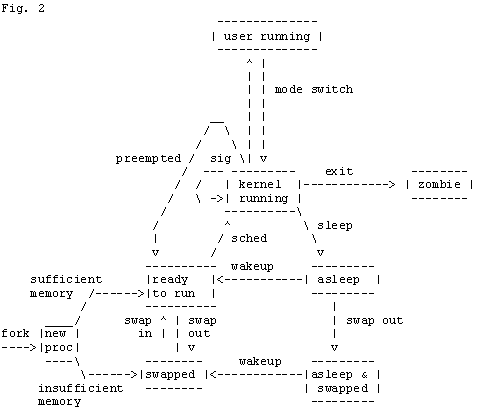
When a process is in kernel mode it may do a number of things. The first possibility is that it will just run some kernel code. In this case it will quickly run the code and then return to user mode or, if the program has finished, it will exit. Immediately after exiting a process is what is called a "zombie". Typically this will show up on your ps as a
Sometimes a process needs some resources that are not available at the time. If this is the case, the process is put to sleep. When a process goes to sleep it waits on an address and at a priority. This address is the value that appears in the field WCHAN when ps(C) is run with the -l option. This address is determined by the device driver that has been called and is typically the address of a local variable in the device driver.
If the process is sleeping at priority above PZERO, which is defined in /usr/include/sys/param.h, and the process receives a signal, the process is put back in the runqueue, and when it is run it returns to user mode. As it returns to user mode the signal is handled, and if a kill -9 has been sent, the process is killed.
If a process is sleeping at a priority below PZERO, signals will not cause the process to be woken up. The priority that a process sleeps at is determined by the device driver that has been called. The device driver should only put a process to sleep below PZERO if it is certain that the resource will be freed quickly so that the process can be woken up. If the process that you are trying to kill is sleeping below PZERO it will only be woken up when the resource it was waiting for has been freed. Once the process is woken up, it is put back on the run queue, and when it gets to run and as it returns to user mode, the signals are handled. If the process is never woken up by the driver the signals will never reach the process and it will remain unkillable.
The only other reason a process may be unkillable is if the process is being ptraced. The kernel will only ptrace a process on the behalf of a user process. Ptraces are for the most part only performed by debuggers.
The above "technical" explanation might scare someone or might encourage someone. That depends on how "brave" are you "at heart". :)
Now I will finish with the "excerpts from the Internet" with these last two:
In unix-like operating systems, ALL processes (apart from the first one) are created by other processes. To create a new process, a current process does a fork(2) system call. The kernel then creates the internal structures needed in the process table. Often, the parent process does a wait4(2) system call, which means it waits for the child process to finish. This means you can get a little info about the process after it finished, like cpu time, etc.
If you don't care when the process finishes, you have to explicitly say so, otherwise the kernel will keep the info in the process table expecting your process to eventually call wait4(2) or a similar function. A process that has finished (and so is using no memory) but has not yet been "reaped" is called a Zombie, and the kernel is keeping its process table entry alive.
Two ways to avoid creating Zombies (other than calling one of the wait() functions) include:
- handling the SIGCHLD signal
- fork(2) and then get the child to fork(2) again and then exit immediately, so that you've created a grandchild rather than a child.
Zombie processes will show 'Z' in the STAT column of ps -aux
> A zombie is a process which has exited, but its parent
> process has either not called wait(2), waitpid(2), or has not set up the
> signal mask to ignore SIG_CHLD. If the parent process does not "reap"
> its children by calling wait(), etc., then the *only* way to make the
> zombie processs go away is for the parent process to terminate.
>
> Zombie processes are not normally a big problem, and as long as there
> are only a few of them then they can be blissfully ignored. Each
> zombie, however, will take up a slot in the kernel's process table, so
> if there are more than a few, or if they are increasing over time, then
> you need to figure out who the parent process is and see what can be
> done to make it either call wait(), ignore SIG_CHLD, or failing that,
> see if you can do without it.
>
> -- Steve McCarthy
> sjm@halcyon.com
> www.halcyon.com/sjm
These two last excerpts may give you an overall idea about Zombies.
To finish what I have started, I will list out the main cause why this Zombies are born in the first place and steps to take actions against them.
Why Zombies are born:
- Simply Bad code in the responsible parent (daemon).
- There's a hardware problem, thus the process that was handling the hardware became Zombie.
Actions that can be taken:
- Find the responsible parent process (service) and restart it or kill it. To find the parent process issue: 'ps -elf'
- If zombies keep coming back even after restart of the service (parent process), try rebooting the machine.
- If the zombies keep haunting you even after a reboot, then try looking for an update of the service that is creating the zombies and update the service (or patch it).
- If all of the above fails, then it time to look for a possible hardware problem. Best way to start is to find out what hardware that specific process (service) will use.
- If you are unable to find the root cause, then depending on the number of zombies you can start living with them. Few zombies won't bite you to death.